NOTE: This article is a more generalized version of a documentation page I wrote for the SFU Racerbot design team, you can view said documentation here
The design team I am a part of (SFU Racerbot) uses NVIDIA Jetson Orin Nanos to power our autonomous cars and in order to use them you need to flash Ubuntu 22.04 LTS onto them so your code can run.
We went into this thinking it would be an easy endeavour; I mean how hard it is it install an operating system?

Oh boy, we were very wrong.
Poor Documentation
NVIDIA sucks at documentation, maybe it could be the fact we are using a slightly older Jetson but they should still have easy to follow documentation from when it was released. It is very disorganized and hard to find exact steps on what to do. For example, it told us we needed to put the Jetson into recovery mode and was there a link on said page that linked to a guide on how to do it? Nope, we had to ask Gemini.
This is the reason why I am writing this article, is so others do not have to spend 2 hours trying to figure out how to put Ubuntu onto a tiny computer.
Setup Guide
Prerequisites
You need to be either running Windows 10/11 or Ubuntu 22.04 LTS (Cannot be Ubuntu derivatives such as Linux Mint, has to be Ubuntu 22.04)
You need an NVIDIA account (it’s free)
You need to have the NVIDIA SDK Manager Installed, you can download it here (This does require a NVIDIA account)
Step 1: Put Jetson into recovery mode
First, make sure the Jetson is powered off and unplugged
Plug in a USB-C cable into your computer (do not use hubs, connect it directly to your computer)
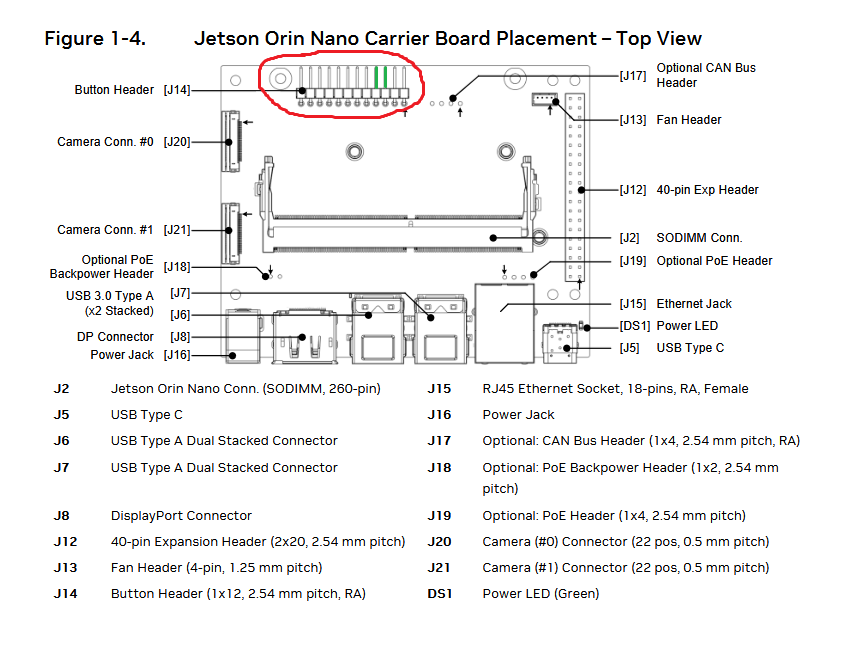
Put a jumper on pins 9 and 10 of the button header. The image below (Figure 1-4) shows you where the button header is and what pins to jump
Next, plug the power cable into the Jetson
Wait three seconds and then remove the jumper
To verify that the Jetson is in recovery mode (if you are on Linux) open a terminal and run the command lsusb, if there is an entry that contains something like NVIDIA AGX, the Jetson is in recovery mode.
Step 2: Flash the Jetson
Open the NVIDIA SDK Manager and login to your NVIDIA account
There should be a popup saying that the board was detected and two options are given, choose the one that has Developer Kit in the name.
The software should look like this, except yours should say that the board was detected
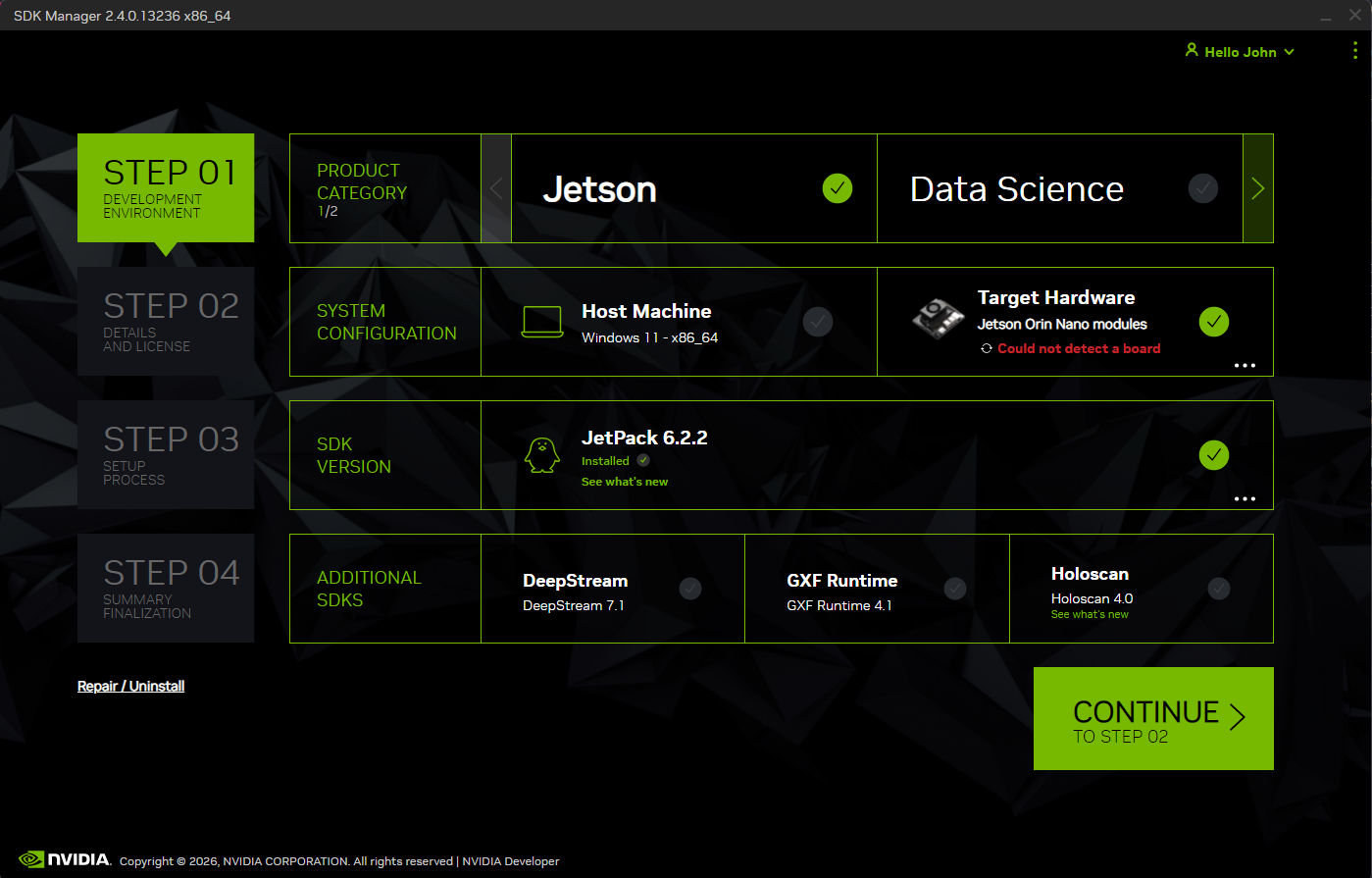
Click the continue button, you will now be on a screen that looks like this (If it says Checking Status next to each component that is ok):
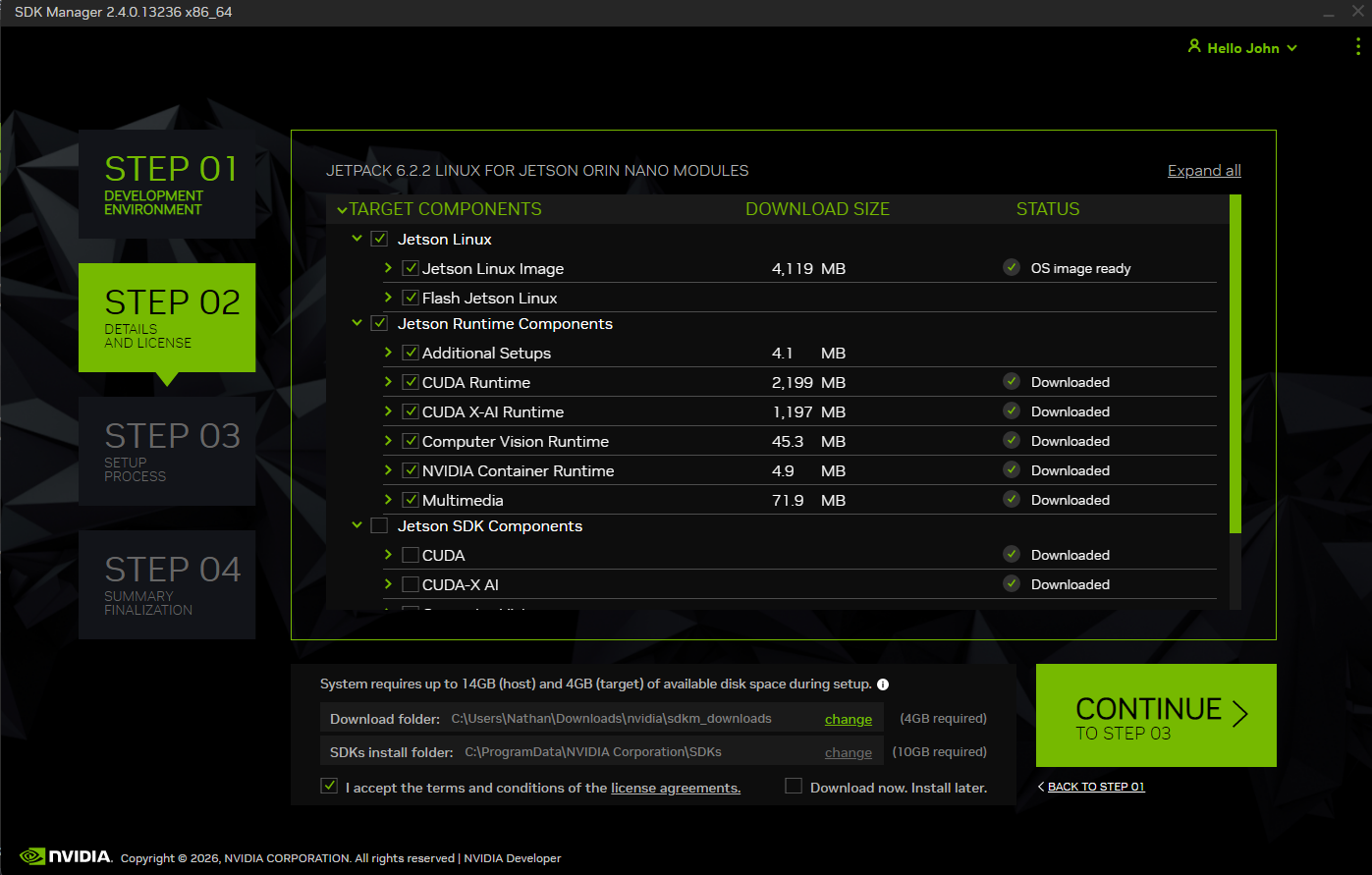
Accept the terms and conditions, then click the big green continue button.
It may prompt you during the installation to set a username and password, this will be what is used to login to the Jetson
Once the installation is finished, it is safe to close the SDK manager and unplug the Jetson.
How to remotely access the Jetson
SSH
Connect the Jetson to the same network as your computer, and run ip addr. The number that looks like xxx.xxx.xxx.xx is the IP address.
On your computer, open a terminal and run ssh username@ip_address. At the first prompt type yes and then enter the password for the user. Now you should have a remote shell
into the Jetson
Remote Desktop
Connect the Jetson to the same network as your computer, and run ip addr. The number that looks like xxx.xxx.xxx.xx is the IP address.
With the Jetson hooked up to a monitor/mouse/keyboard, press the Windows key, go to the search bar and type settings. Then open settings. Go to the sharing section and click
Remote Desktop, set remote desktop to on and look at the username and password for it. Also toggle on Allow Screen Control
Windows
Open the start menu and search for Remote Desktop Connection, open it up and in the Computer field type the IP address of the Jetson. It will then prompt you for a username
and password, enter the username and password you saw before (not the one to login, for some reason it’s different).
You should now be remotely connected to the Jetson and can safely disconnect the monitor/keyboard/mouse.
Linux
I highly recommend looking into installing Remmina
What to do if you are on a network that doesn’t allow local connections
Some networks don’t like it when you connect to other devices locally (universities, dorms, etc.) so we figure the best thing to do is create a hotspot from your computer. On Windows 11, go to Settings, go to Network, go to Mobile Hotspot and turn it on. Look at the SSID and password then connect the Jetson to that network. In the table below the QR code it will show you the IP address of the Jetson. Use that to Remote Desktop or SSH into the Jetson.